
Dashboard Overview
The Truemed Dashboard at app.truemed.com is where you monitor performance, review customer payments, manage your product catalog, and control account settings. This guide walks through each section so you know where to find what you need.
This overview reflects the dashboard experience for Shopify merchants.
Home
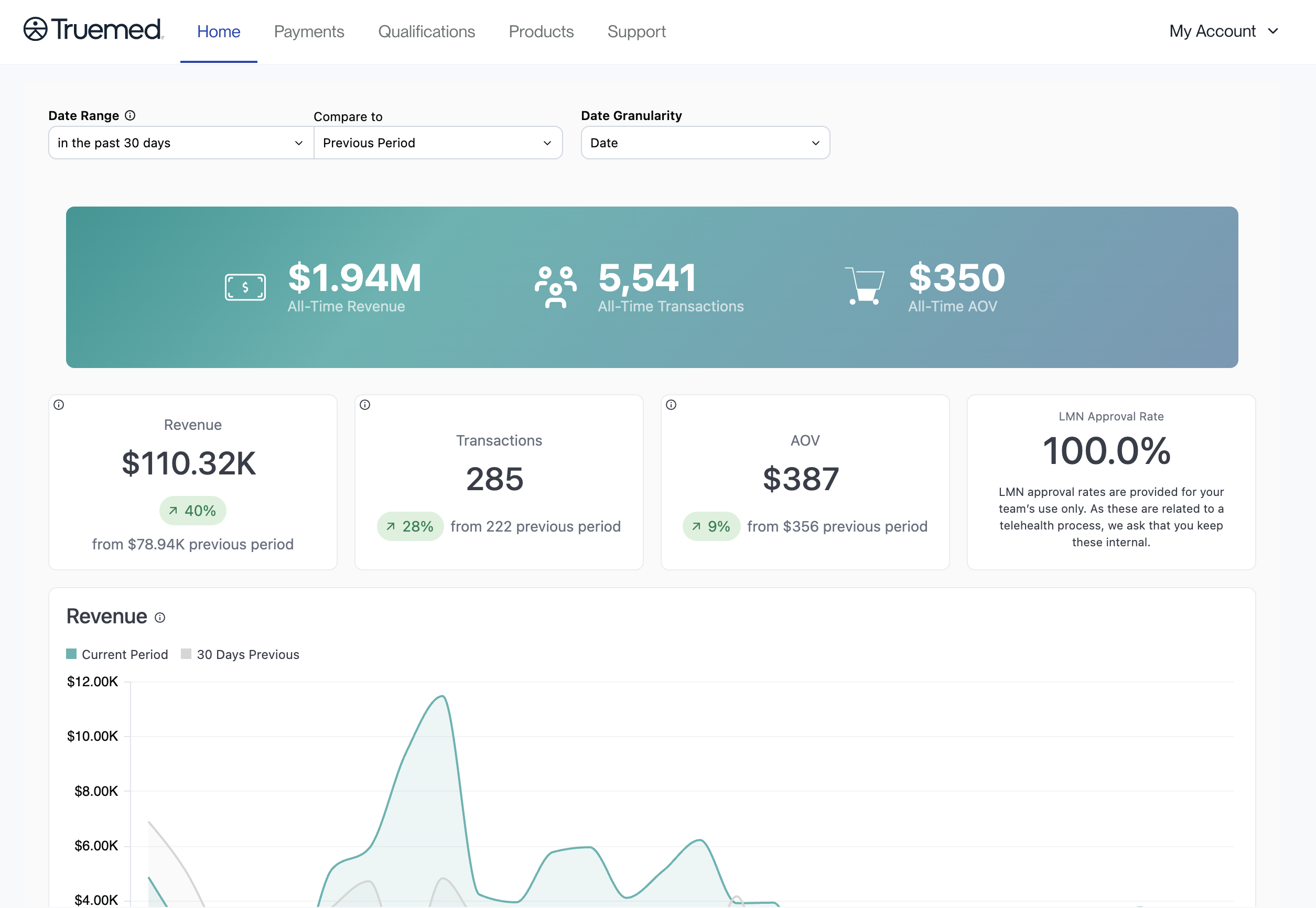
When you sign in at app.truemed.com, you land on the Home page. It shows the most important revenue and transaction data for your Truemed account.
At the top of the page you can control the view:
- Date Range: choose the period you want to see, for example the past 30 days
- Compare to: compare that period against the previous period
- Date Granularity: set how the data is grouped over time
A banner shows your all-time totals: All-Time Revenue, All-Time Transactions, and All-Time Average Order Value (AOV).
Below the banner, a set of cards shows the metrics for the period you selected, each with the change from the comparison period:
- Revenue
- Transactions
- AOV (average order value)
- LMN Approval Rate
A Revenue chart at the bottom plots your current period against the comparison period so you can see the trend over time.
LMN approval rates are provided for your team’s internal use only. Because they relate to a telehealth process, please keep them internal.
Payments
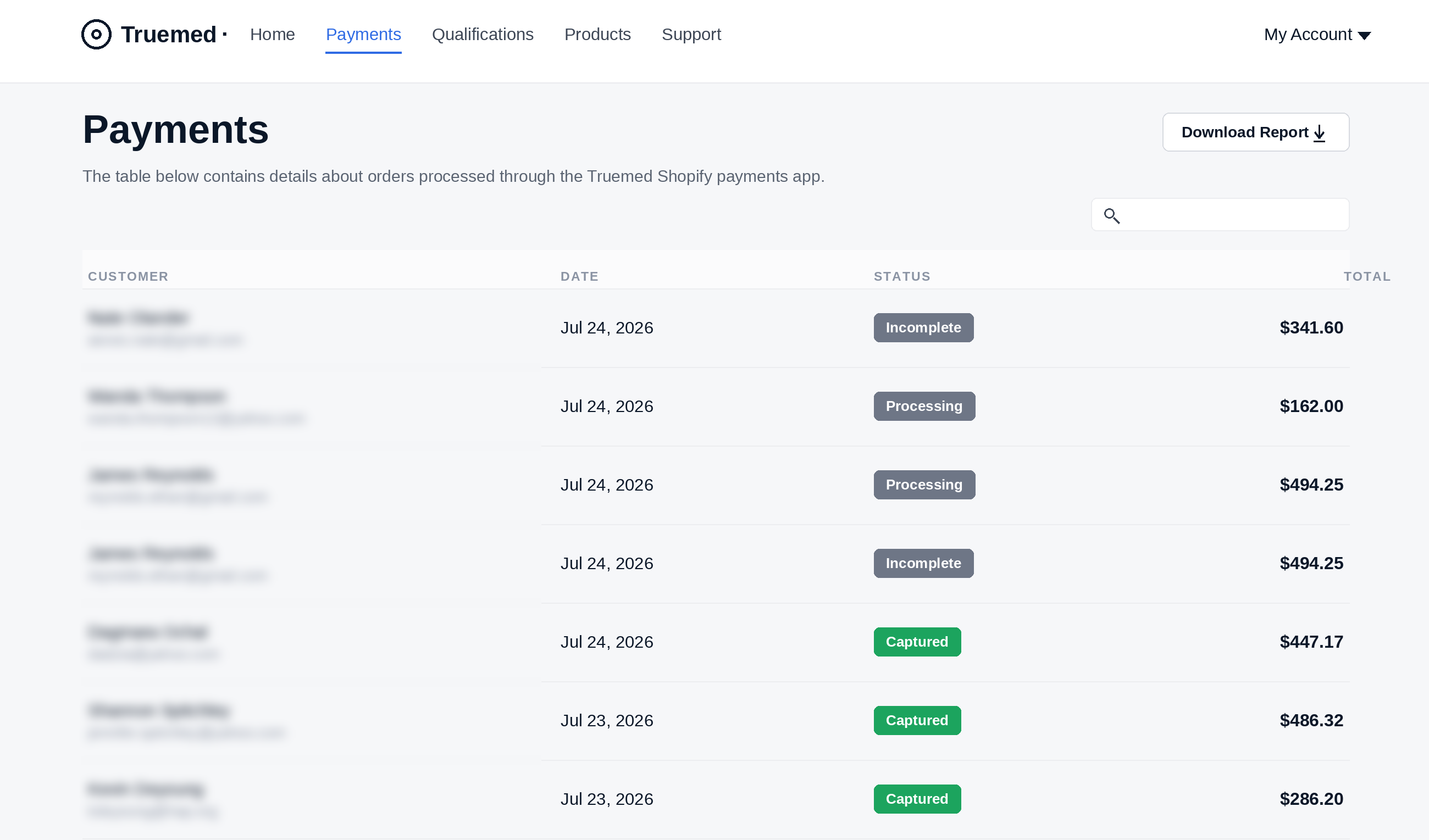
The Payments page contains details about orders processed through the Truemed Shopify payments app. For each order you can see the customer name and email, the date, the status, and the total order amount. Use the search box to find a specific order, or click Download Report to export the list.
Each order carries one of the following statuses:
Products
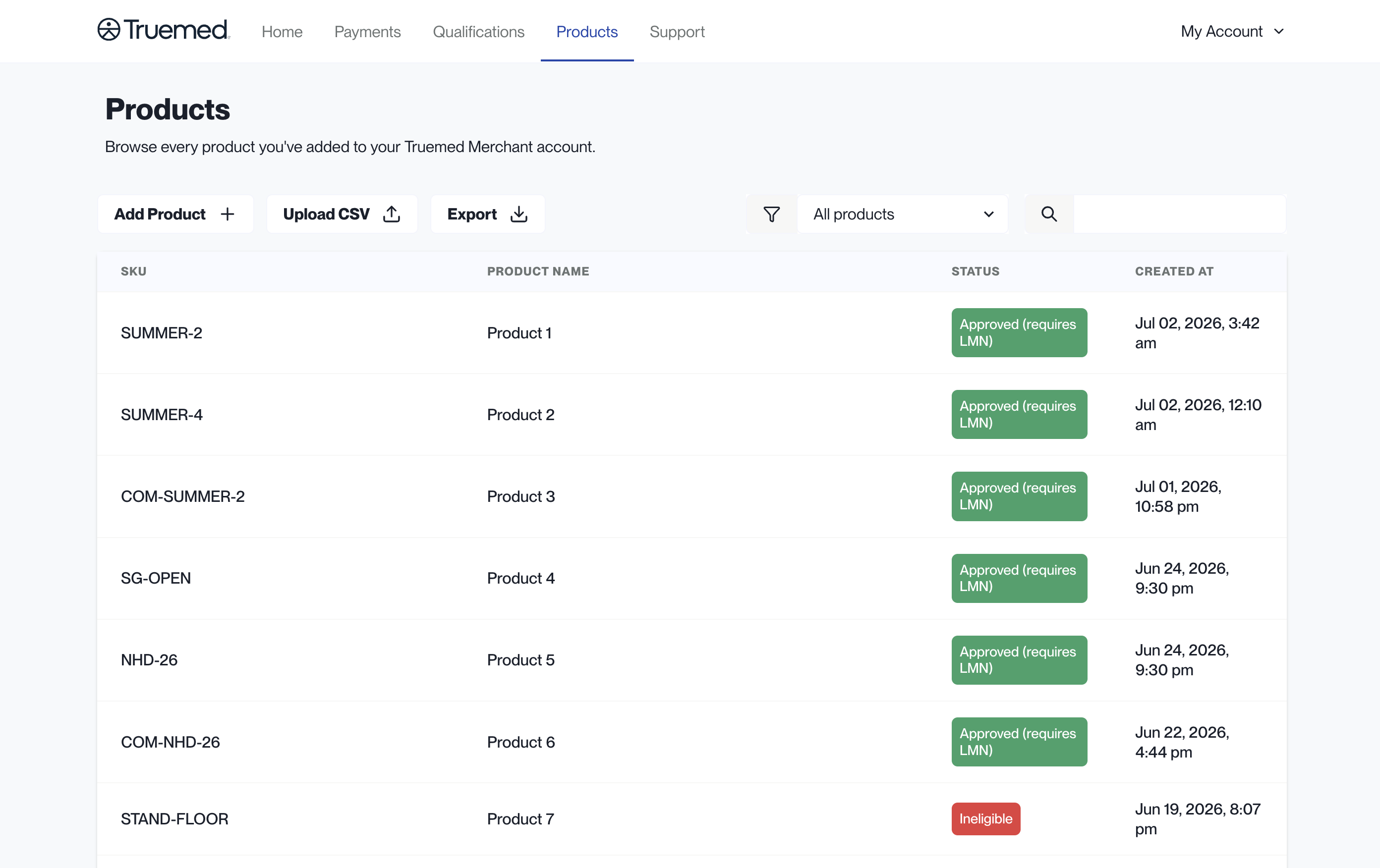
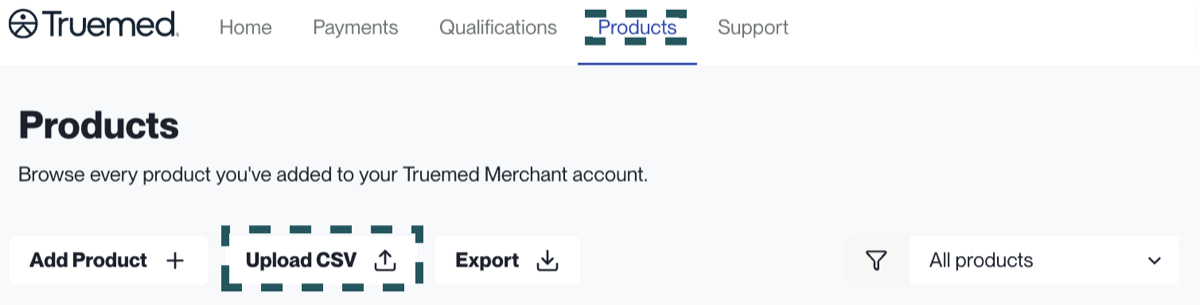
The Products section lists every product you have added to your Truemed Merchant account. For each item you can see the SKU, the product name, the status, and when it was created.
From this section you can:
- Search and filter your products by status
- Add new products individually or via CSV upload
- Export all existing products in the system
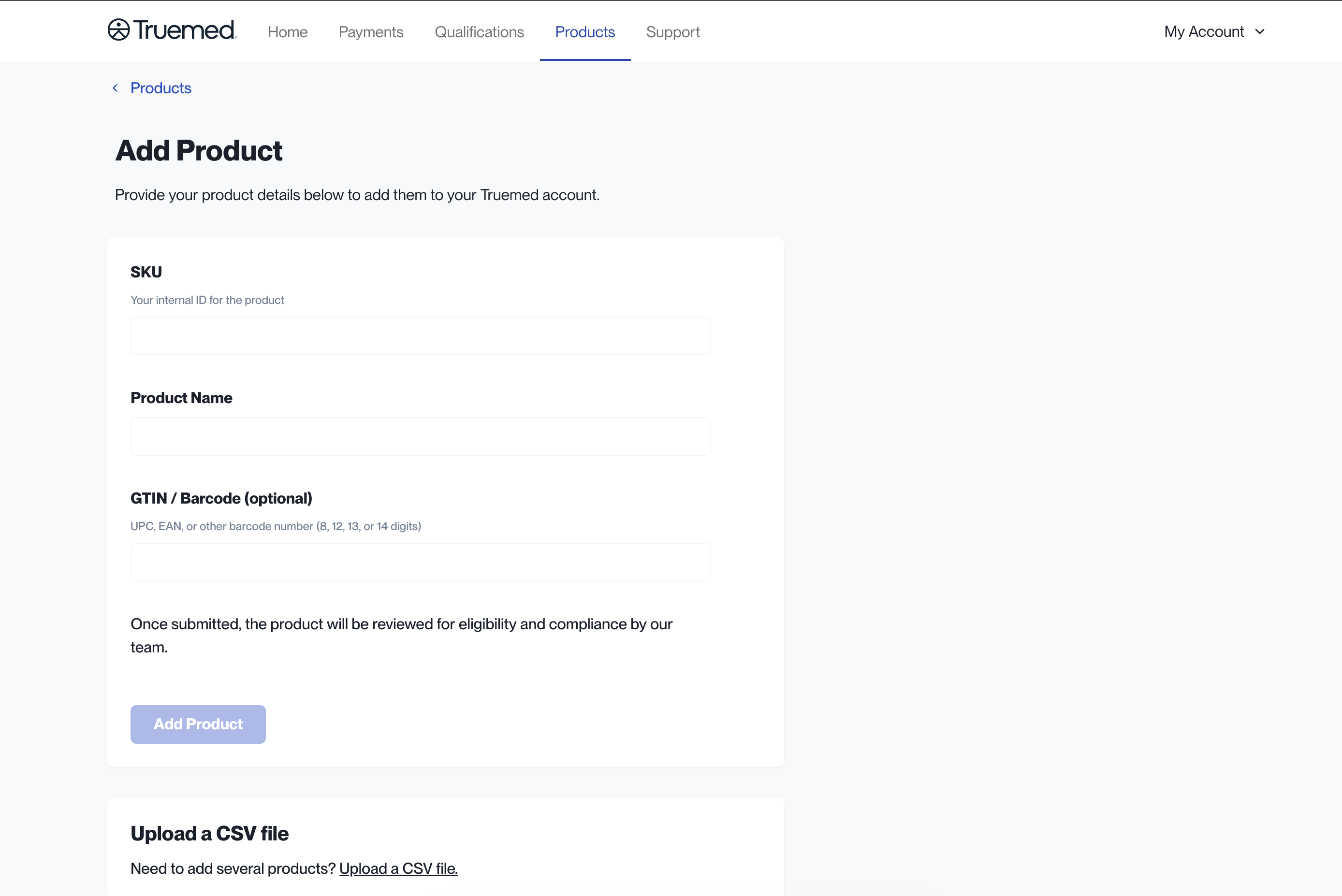
To add a product individually, click Add Product and provide:
- SKU: your internal ID for the product
- Product Name
- GTIN / Barcode (optional): a UPC, EAN, or other barcode number
Once submitted, the product is reviewed for eligibility and compliance by the Truemed team. To add many products at once, use Upload CSV instead.
Keeping your SKUs current
Truemed uses your SKU as the primary identifier to verify eligibility at checkout, so keeping this list current is the most important thing you can do to make sure customers see accurate eligibility on your store. When a customer tries to check out with a product that has not been categorized, it defaults to ineligible until the Truemed compliance team reviews it.
Upload your product list on a regular cadence (monthly or quarterly), whenever you launch new products, and any time a customer reports a product showing as ineligible at checkout.
To prepare your list in Shopify:
- Log in to your Shopify dashboard
- Click the Products tab
- In the upper right, click Export
- Select All Products and Plain CSV File
- Click Export Products
Make sure all product variants have a Variant SKU assigned before exporting. Items missing a SKU are skipped on upload.
Then upload the file from the Products tab using Upload CSV, or use Add Product to add SKUs individually. Both Owners and Staff can upload, view, and download SKU data.
Once uploaded, each product is assigned an eligibility status:
Eligibility must be verified and assigned by Truemed’s compliance team. You cannot manually tag products as HSA/FSA eligible in Shopify, and new products stay ineligible until the compliance team reviews them.
Support
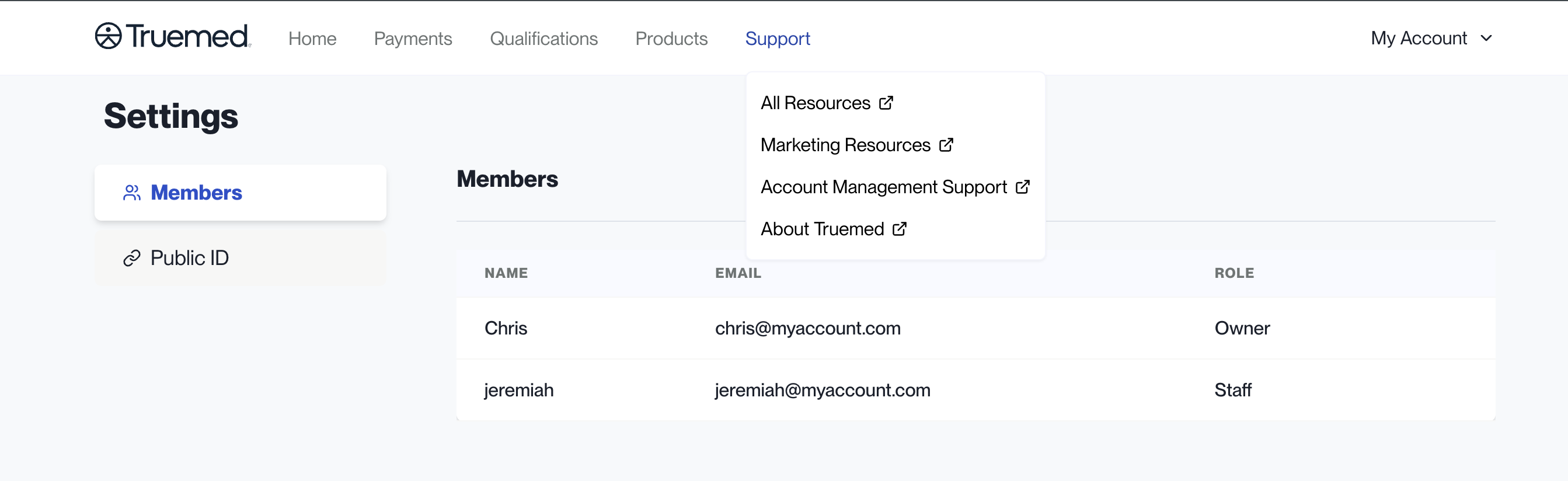
Support is a menu in the top navigation. Opening it gives you quick links to the resources you need as a Truemed merchant:
- All Resources
- Marketing Resources
- Account Management Support
- About Truemed
Each link opens in a new tab.
Settings
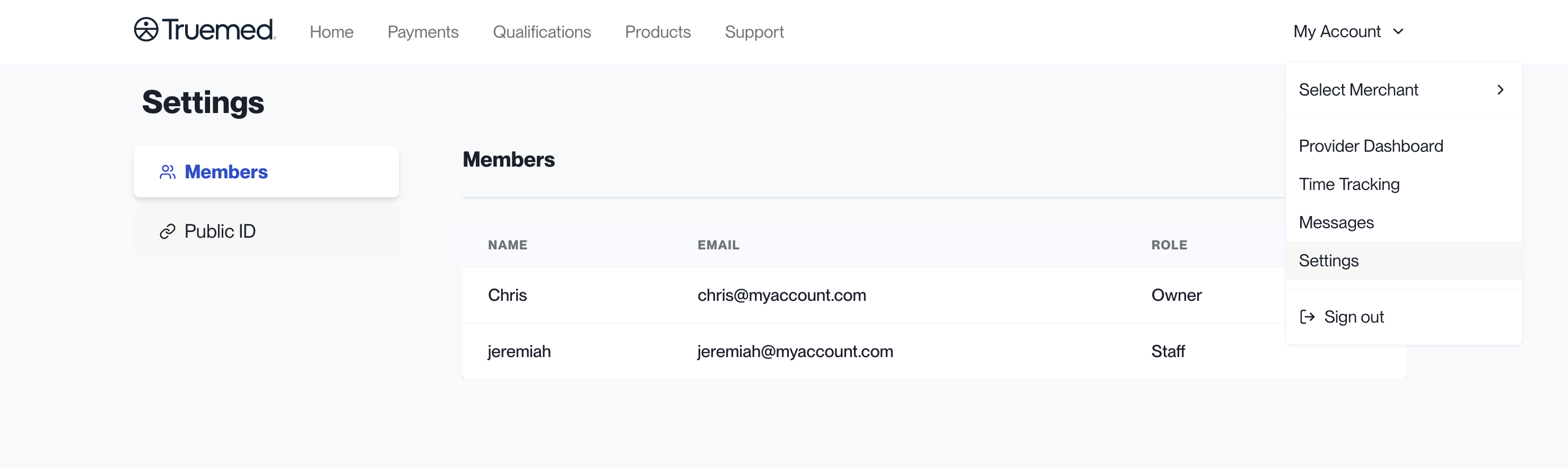
Click My Account in the top right corner and select Settings to manage account details. Settings has two tabs:
- Members: everyone who has access to your Truemed Dashboard, along with their name, email, and role (for example, Owner or Staff).
- Public ID: view and copy your public qualification ID when you need to share it.
Updating account details
- Card on file. In the Truemed Dashboard, select Settings in the top right, click Payment Method, and update it. Only account Owners can update payment methods.
- Linked bank account. Your payout bank account is managed in your Truemed-linked Stripe account. Click the profile icon, select Payout Details, click the edit icon next to your current bank account, then enter and save your new details. Only users with admin access to your Stripe account can update payout information.
- Business details. Business information like your industry or EIN is managed in your Truemed-linked Stripe account, under Platform Settings in the Business Details section.
Need Help?
For any dashboard or account questions, contact merchants@truemed.com.