
Dashboard Overview for Hybrid Merchants
The Truemed Dashboard at app.truemed.com is where you monitor performance, review payments and qualifications, manage your product catalog, and control account settings. This guide walks through each section for hybrid merchants, who combine a payment integration with post-purchase reimbursements and sell subscription products.
This overview is for hybrid merchants. If you use only the Shopify payment app, see the Shopify overview; if you use the payment API, see the API overview; if you run post-purchase reimbursements only, see the Post-Purchase Reimbursements overview.
Home
When you sign in at app.truemed.com, you land on the Home page. Because your account combines both integrations, Home reports on payments and post-purchase reimbursements side by side.
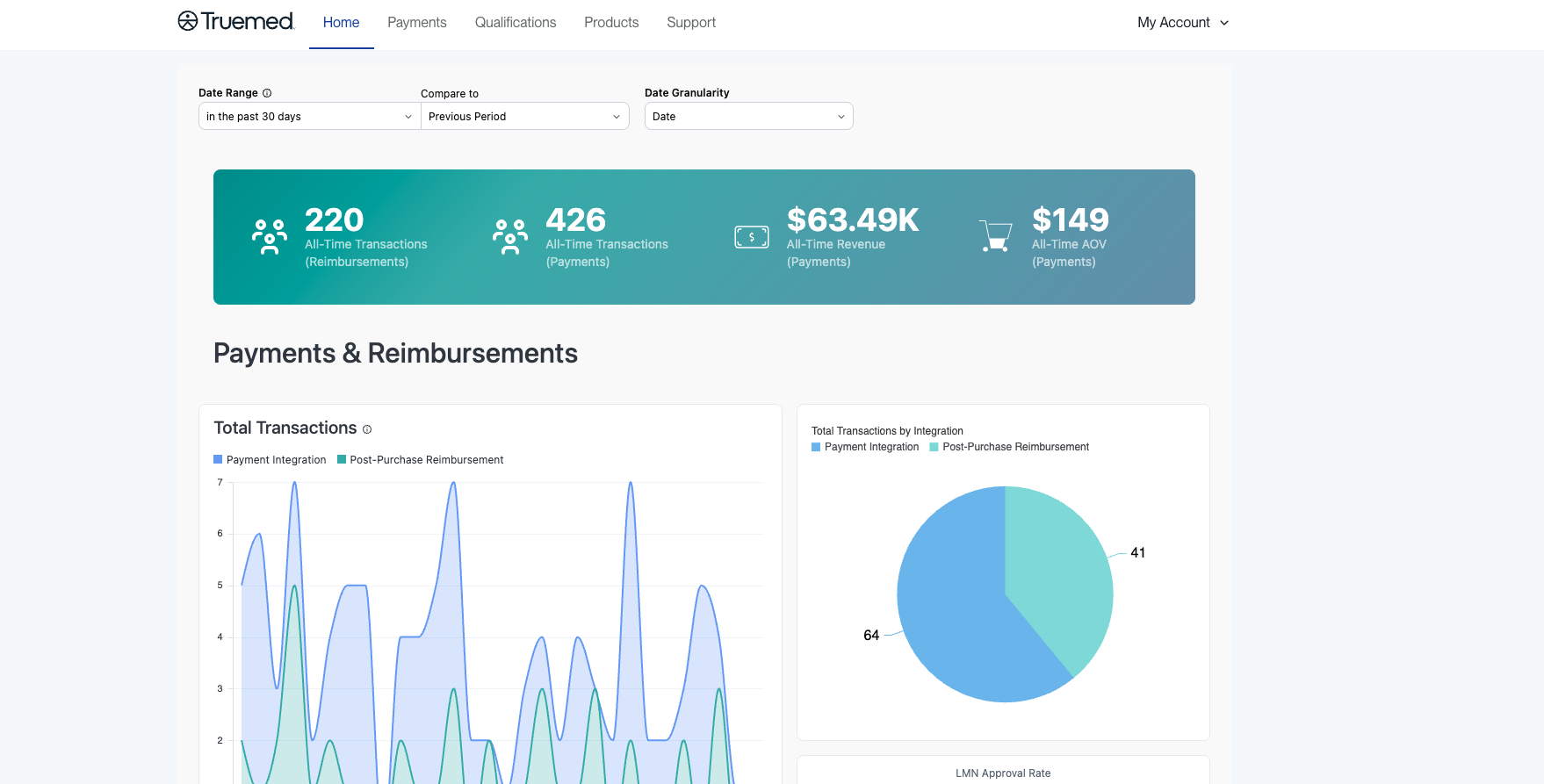
At the top of the page you can set the Date Range, choose a period to Compare to, and set the Date Granularity. A banner shows your all-time totals, broken out by integration: Transactions (Reimbursements), Transactions (Payments), Revenue (Payments), and AOV (Payments).
Below that, the Payments & Reimbursements area shows:
- Total Transactions: a trend chart splitting Payment Integration from Post-Purchase Reimbursement
- Total Transactions by Integration: the same split as a share breakdown
- LMN Approval Rate
LMN approval rates are provided for your team’s internal use only. Because they relate to a telehealth process, please keep them internal.
Payments
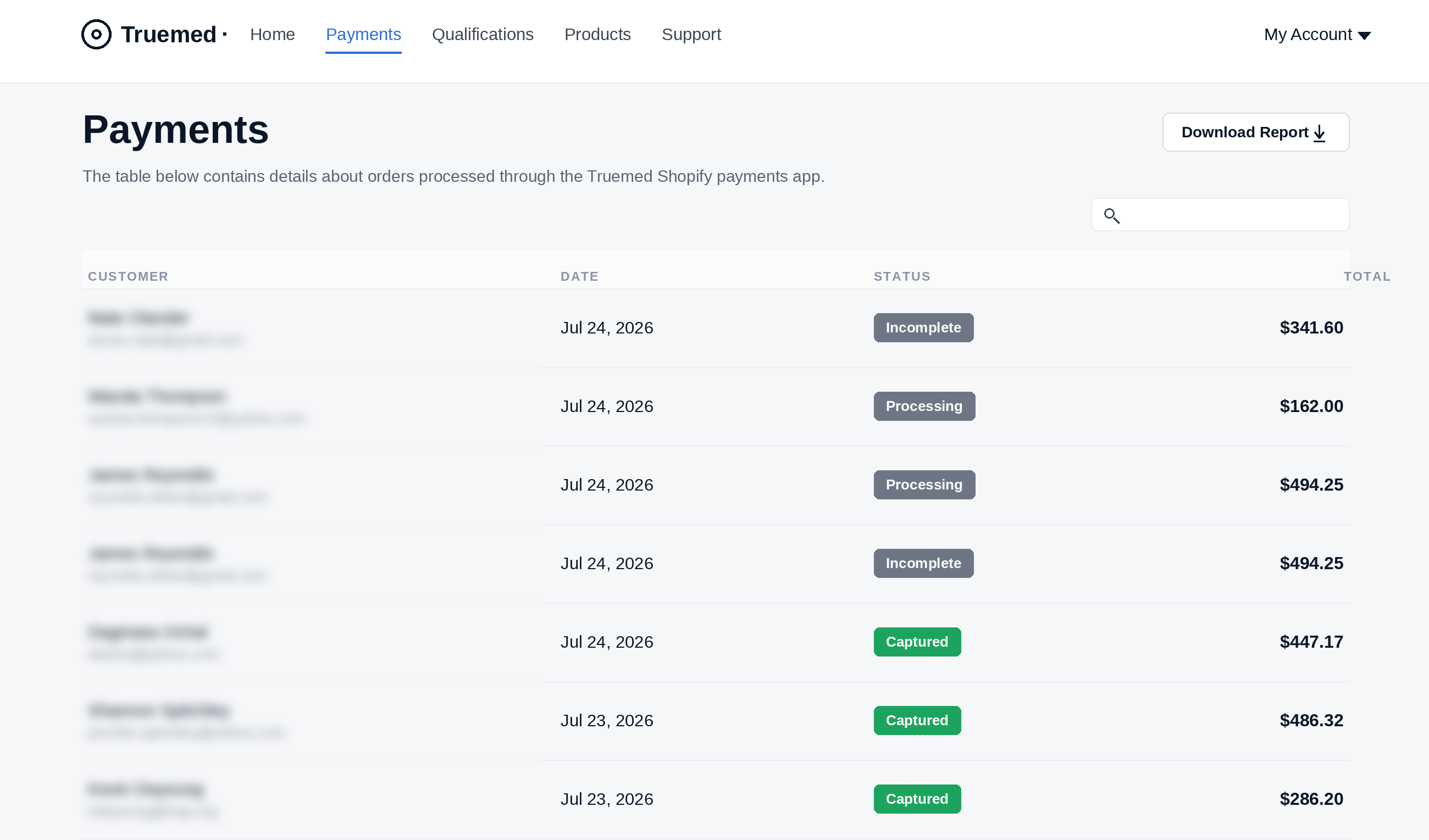
The Payments page shows every payment attempt customers have made using the Truemed payment option. For each attempt you can see the customer name and email, the date, the status, and the total order amount. Use the search box to find a specific order, or click Download Report to export the list.
Each payment attempt carries one of the following statuses:
Qualifications
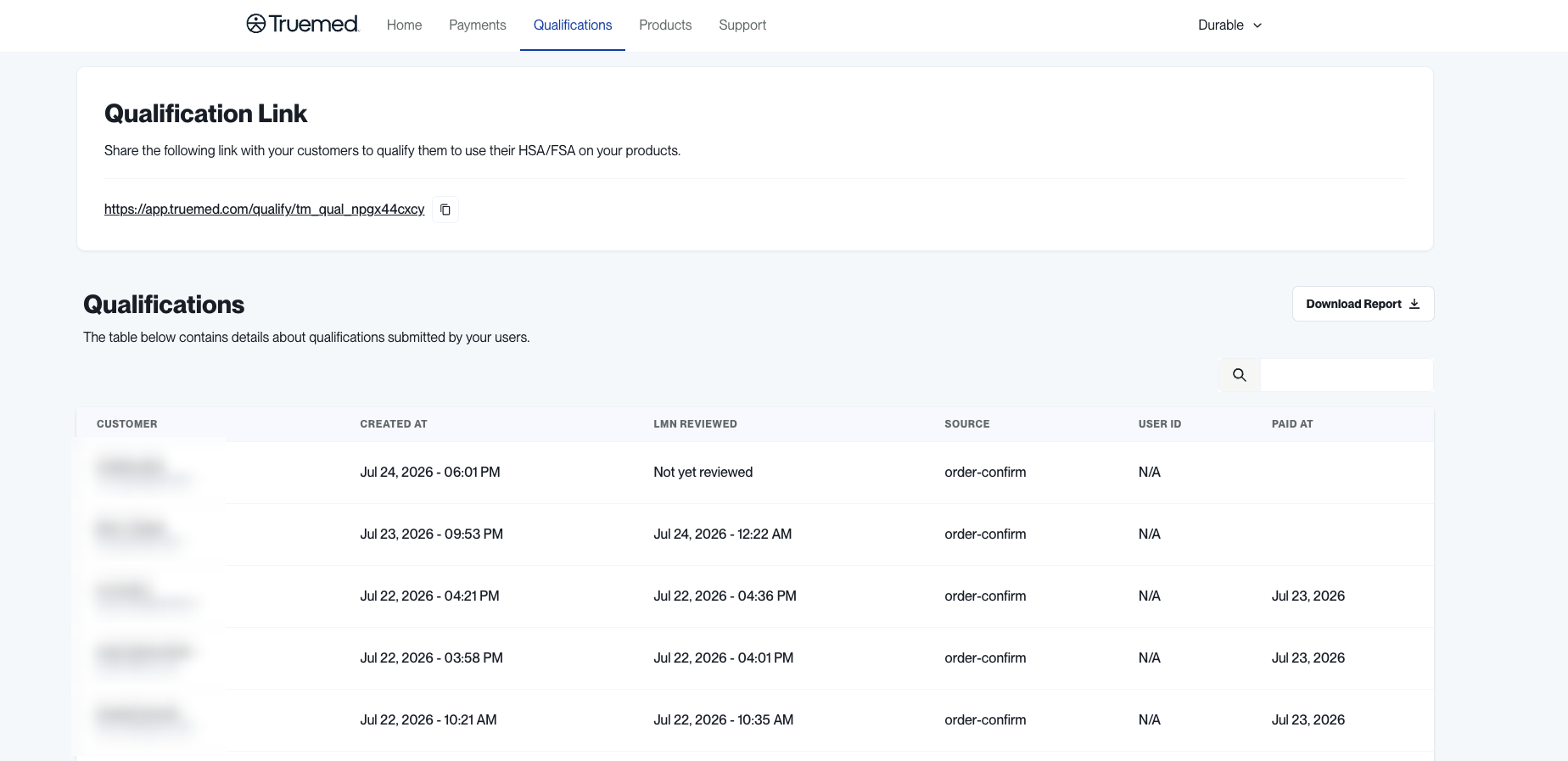
The Qualifications page is where you share your qualification link and review the qualification and Letter of Medical Necessity (LMN) requests tied to your customers’ purchases. For subscription products, each purchase that runs through post-purchase qualification appears here.
At the top, the Qualification Link section holds the link you share with customers so qualified customers can use HSA/FSA funds on your products. Use the copy button to grab it.
The Qualifications table below lists the requests submitted by your users. For each one you can see:
- Customer
- Created At
- LMN Reviewed (the review date, or “Not yet reviewed”)
- Source (for example, order-confirm)
- User ID
- Paid At
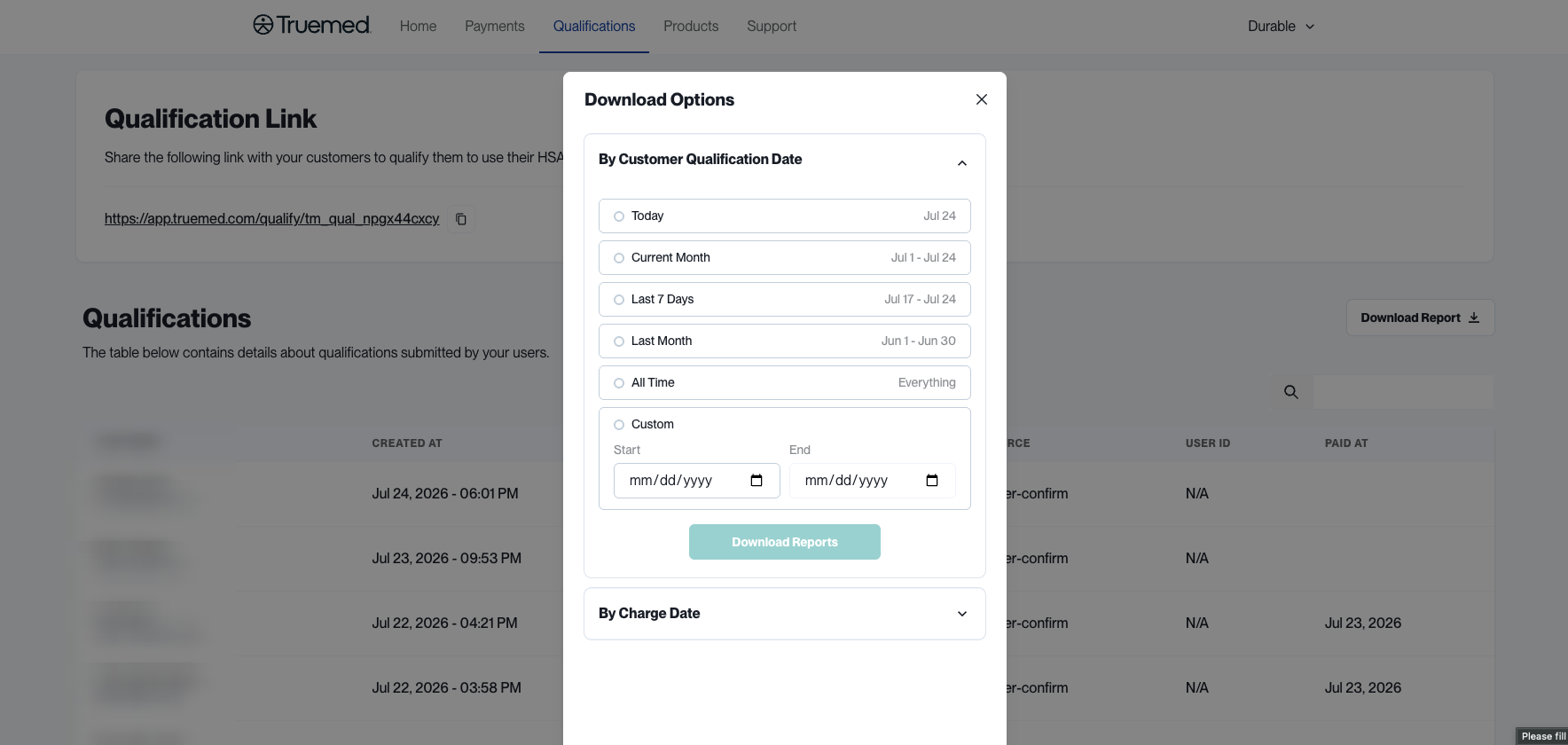
Click Download Report to export the data. You can pull it By Customer Qualification Date or By Charge Date, using preset ranges (Today, Current Month, Last 7 Days, Last Month, All Time) or a custom date range.
Qualifications are batch-charged weekly on Thursdays. The charge date on a record reflects when your account was billed for that LMN issuance.
Only the fields listed above are shown in the dashboard. No protected health information is displayed. All medical data submitted through the clinical intake form remains private.
Products
The Products section lists every product you have added to your Truemed account. For each item you can see the SKU, the product name, the status, and when it was created. You can search and filter by status, add new products individually or via CSV, and export your full list.
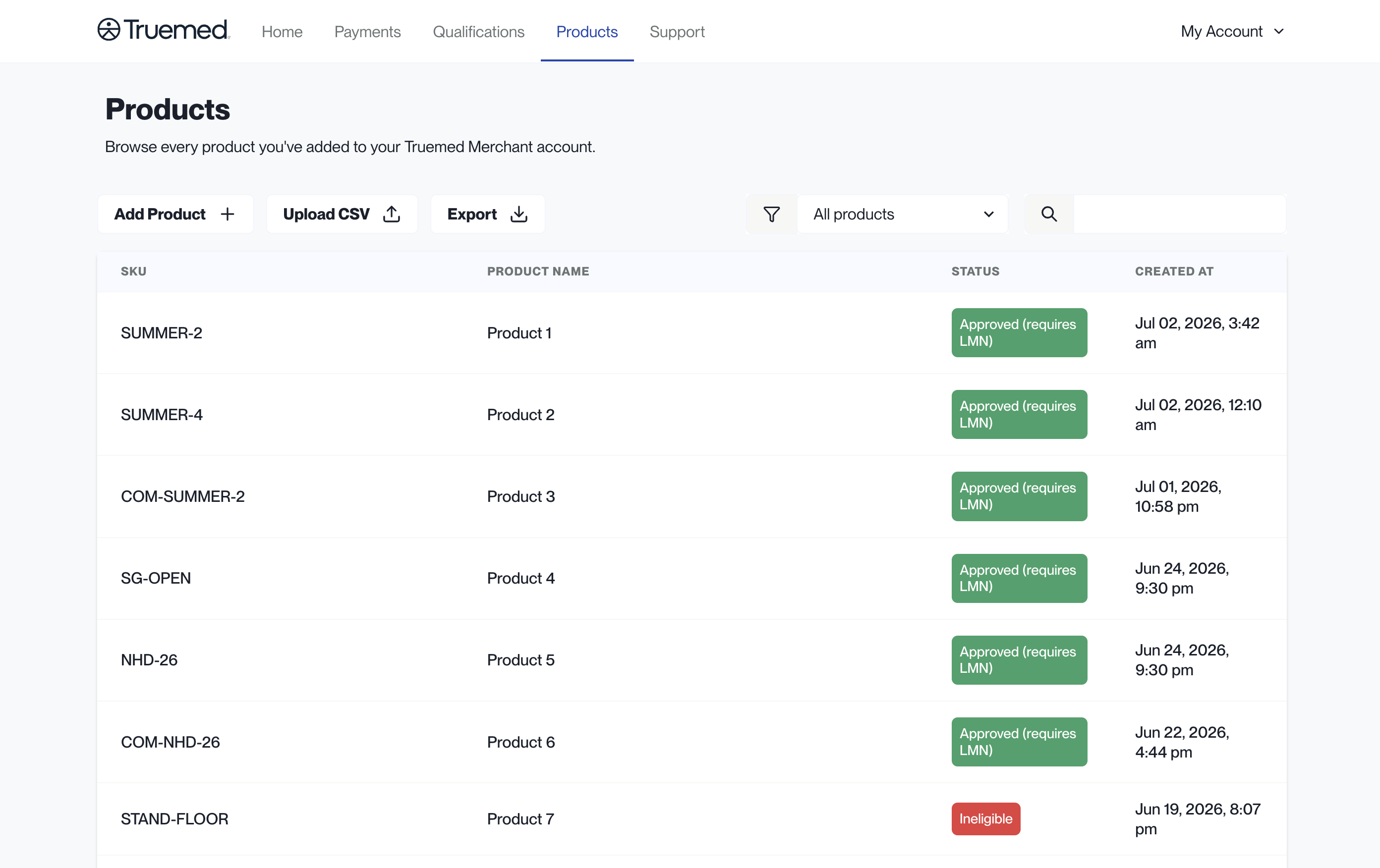
Keeping your SKUs current
Truemed uses your SKU as the primary identifier to verify eligibility, so keeping this list current ensures customers see accurate eligibility. When a customer tries to check out with a product that has not been categorized, it defaults to ineligible until the Truemed compliance team reviews it. Upload your product list on a regular cadence (monthly or quarterly), whenever you launch new products, and any time a product is reported as ineligible.
Upload from the Products tab using Upload CSV, or use Add Product to add SKUs individually. If you sell on Shopify, export your catalog from Shopify’s Products tab (Export, then All Products and Plain CSV File), making sure every variant has a Variant SKU. Otherwise, prepare a CSV with Title, Handle, Variant SKU, and Description columns. Both Owners and Staff can upload, view, and download SKU data.
Each product is then assigned one of these statuses:
Eligibility must be verified and assigned by Truemed’s compliance team; it cannot be self-assigned.
Support
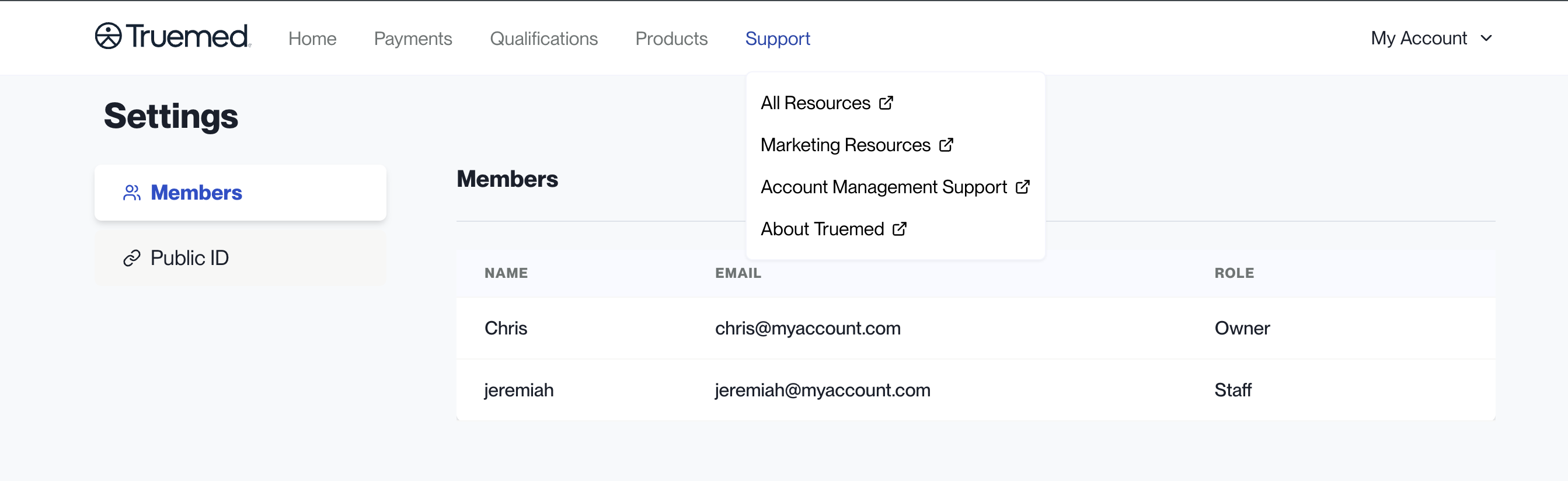
Support is a menu in the top navigation with quick links to the resources you need as a Truemed merchant:
- All Resources
- Marketing Resources
- Account Management Support
- About Truemed
Each link opens in a new tab.
Settings
Click My Account in the top right corner and select Settings to manage account details. Settings has three tabs:
- Members: everyone who has access to your Truemed Dashboard, along with their name, email, and role.
- Payment Method: the card on file for your account. As a subscription merchant, you add a payment method here to cover the cost of the Letters of Medical Necessity issued for your subscription purchases.
- Public ID: view and copy your public qualification ID when you need to share it.
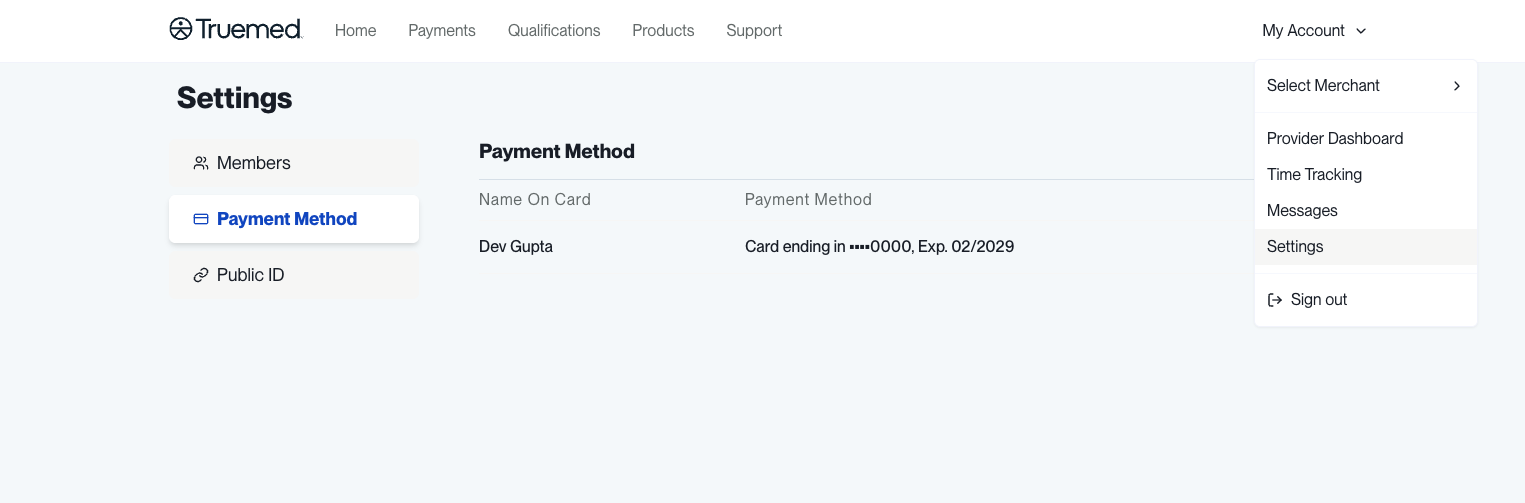
Updating account details
- Card on file. In the Truemed Dashboard, select Settings in the top right, click Payment Method, and update it. Only account Owners can update payment methods.
- Linked bank account. Your payout bank account is managed in your Truemed-linked Stripe account. Click the profile icon, select Payout Details, click the edit icon next to your current bank account, then enter and save your new details. Only users with admin access to your Stripe account can update payout information.
- Business details. Business information like your industry or EIN is managed in your Truemed-linked Stripe account, under Platform Settings in the Business Details section.
Need Help?
For any dashboard or account questions, contact merchants@truemed.com.