
Dashboard Overview for Payment API Merchants
The Truemed Dashboard at app.truemed.com is where you monitor performance, review payment sessions and payouts, manage your product catalog, and manage your API integration. This guide walks through each section for merchants on the Truemed payment API integration.
This overview is for merchants on the Truemed payment API integration. If you use the Shopify app, see the Shopify dashboard overview.
Home
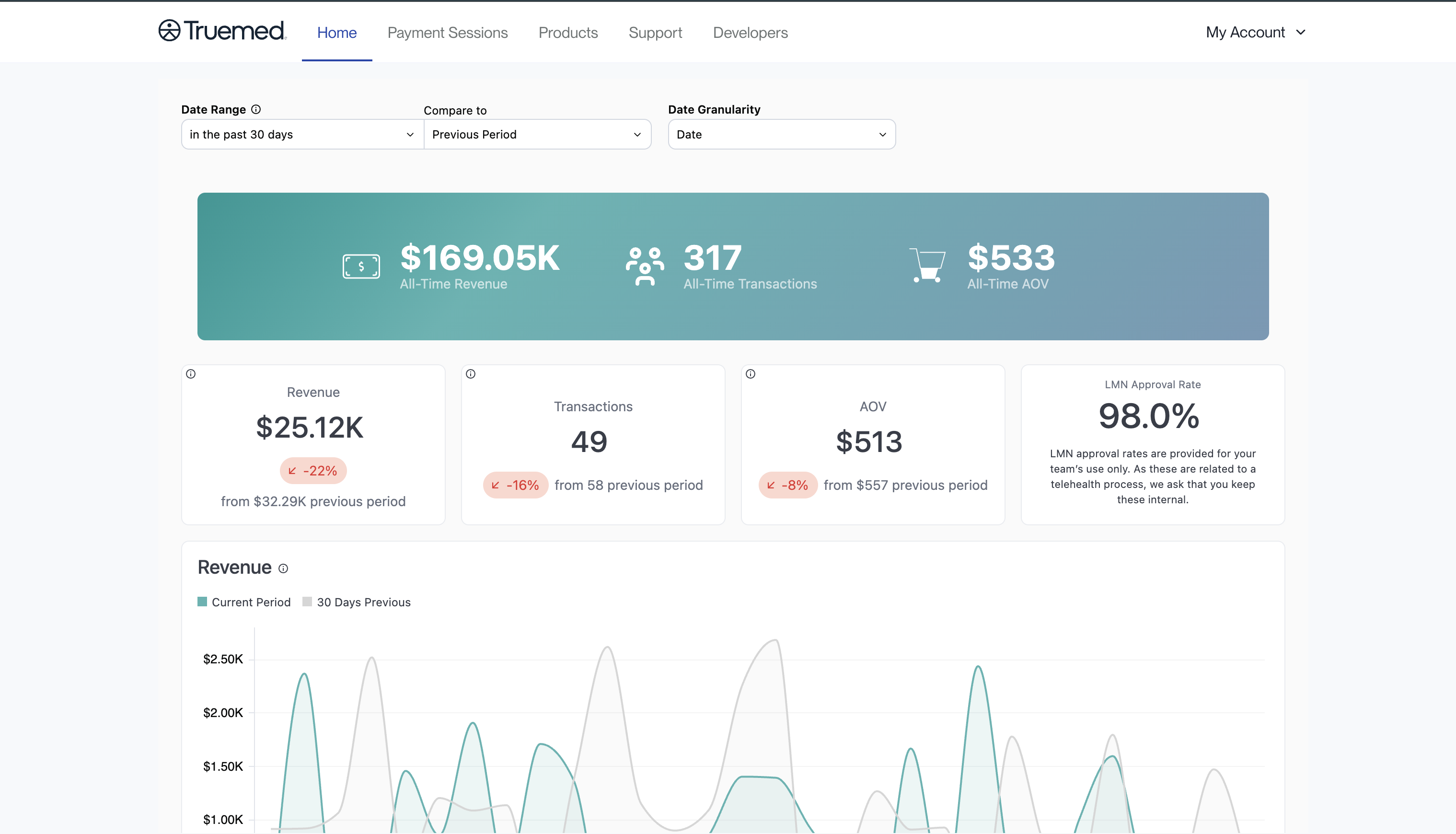
When you sign in at app.truemed.com, you land on the Home page. It shows the most important revenue and transaction data for your Truemed account.
At the top of the page you can set the Date Range, choose a period to Compare to, and set the Date Granularity. A banner shows your all-time totals (Revenue, Transactions, and Average Order Value), and a set of cards shows the metrics for the period you selected, each with the change from the comparison period:
- Revenue
- Transactions
- AOV (average order value)
- LMN Approval Rate
A Revenue chart plots your current period against the comparison period.
LMN approval rates are provided for your team’s internal use only. Because they relate to a telehealth process, please keep them internal.
Payment Sessions
The Payment Sessions page has two tabs: Payments and Payouts.
Payments
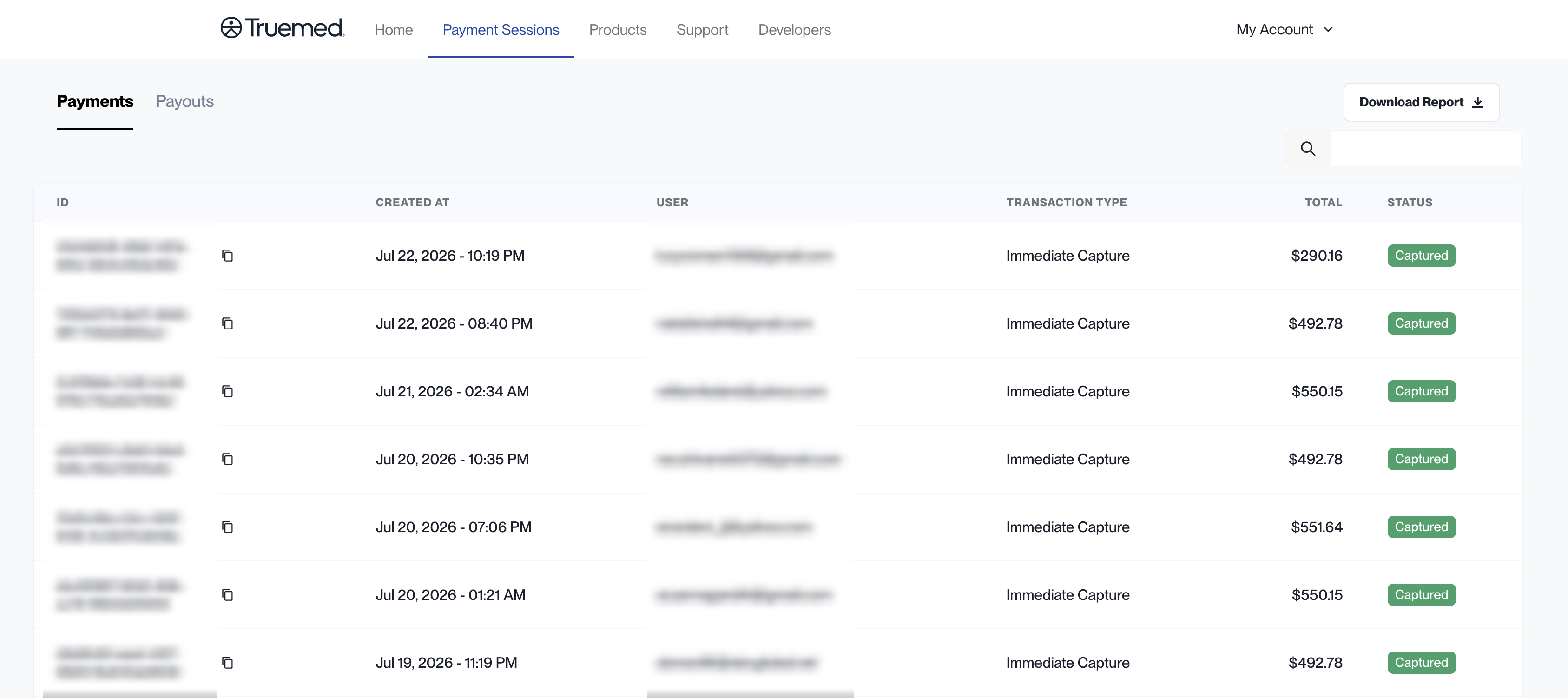
The Payments tab lists every payment session processed through the Truemed payment API. For each payment you can see:
- ID (with a copy button to grab the full ID)
- Created At
- User (customer email)
- Transaction Type (for example, Immediate Capture)
- Total
- Status
Use the search box to find a specific payment, or click Download Report to export the list.
Each payment carries one of the following statuses:
Order details
Each payment is clickable. Selecting one opens its Order Details page, which shows:
- Payment Details: the payment ID, customer email, customer name, and status
- Amount, Truemed Fee, and Net
- Refunds: if the payment has been refunded, the refund date, the amount refunded to the customer, and the Truemed fee returned
- Order Items with their individual amounts
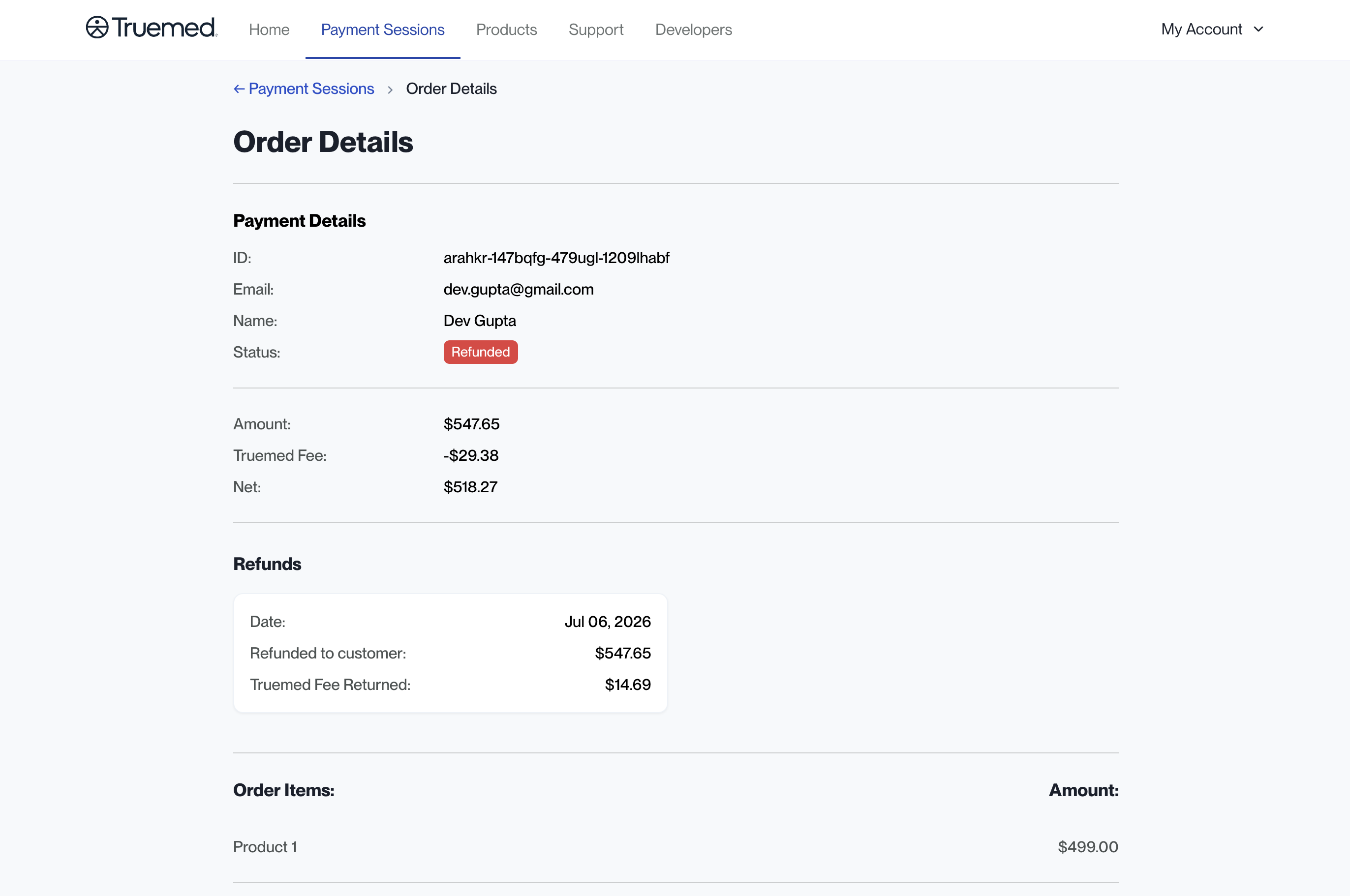
On the payment API integration, you can issue refunds directly through the API (POST /payments/v1/refund). Once a refund is processed, the payment shows a Refunded status and the refund details appear on its Order Details page.
Payouts
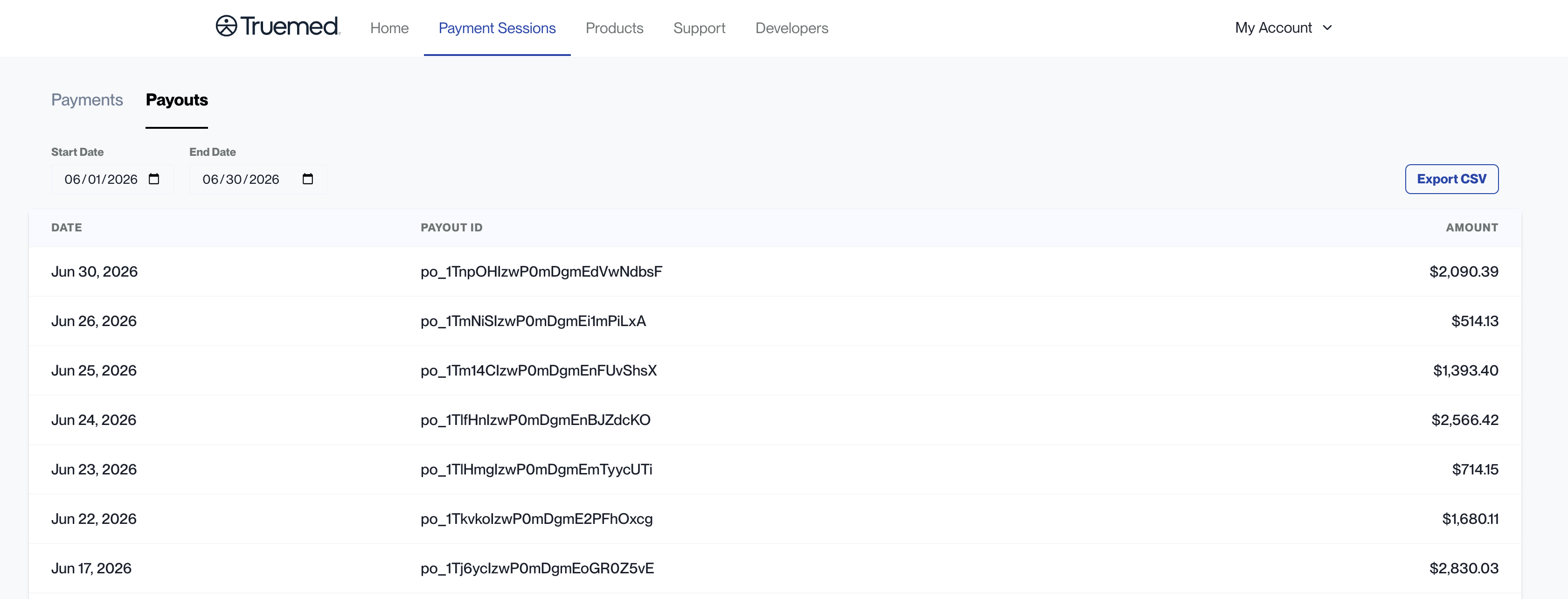
The Payouts tab lists the payouts deposited to your account. Filter by Start Date and End Date, and use Export CSV to download the list. Each row shows the Date, the Payout ID, and the Amount.
Products
The Products section lists every product you have added to your Truemed account. For each item you can see the SKU, the product name, the status, and when it was created. You can search and filter by status, add new products individually or via CSV, and export your full list.
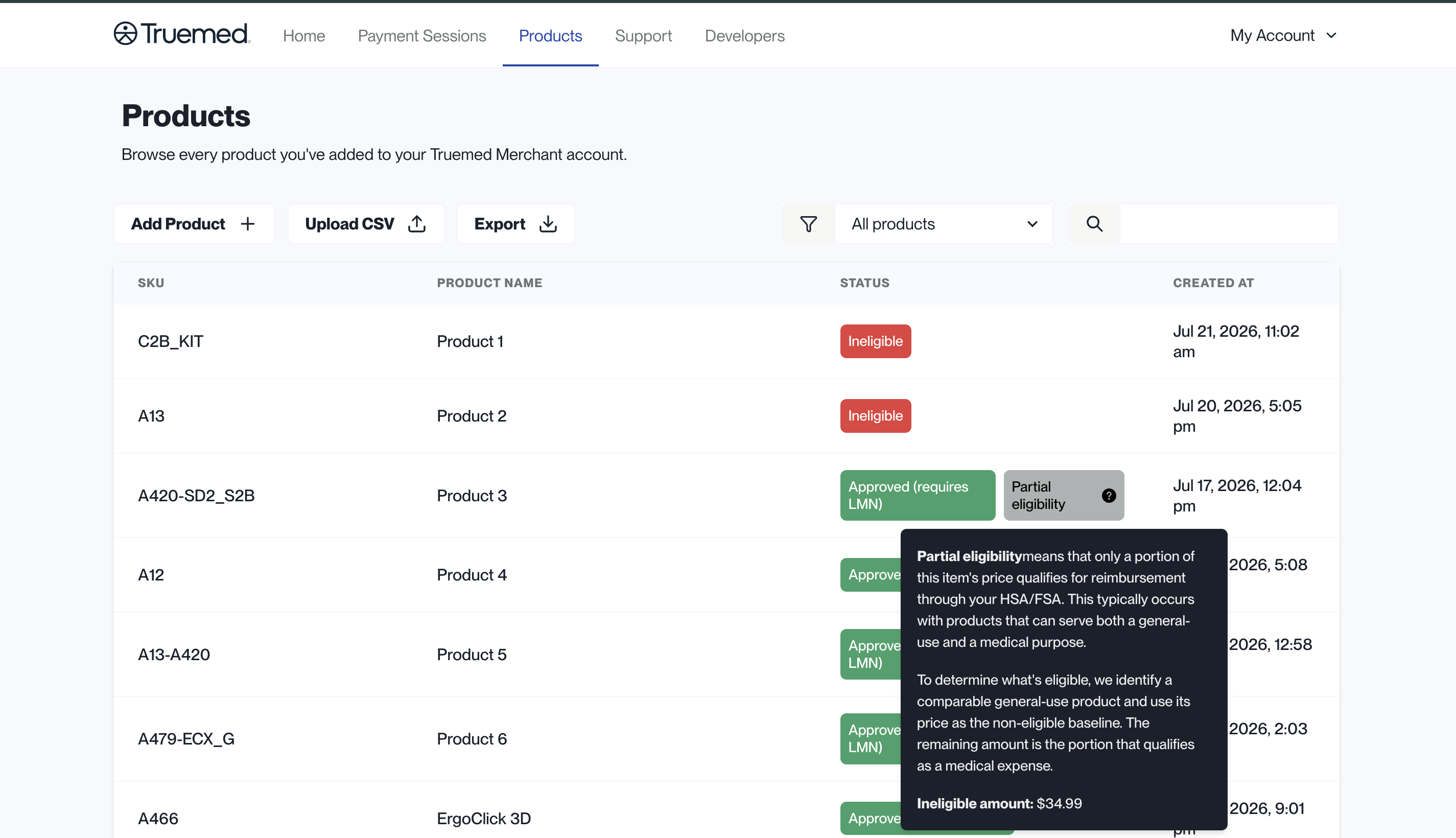
Each product is assigned an eligibility status, such as Approved (requires LMN), Pre-approved, Ineligible, or Partial eligibility.
Partial eligibility means only a portion of an item’s price may qualify for HSA/FSA reimbursement. This applies to products that can serve both a general-use and a medical purpose. To determine the qualifying amount, Truemed identifies a comparable general-use product and treats its price as the non-eligible baseline; the remaining amount is the portion that may qualify as a medical expense.
Keeping your SKUs current
Truemed uses your SKU as the primary identifier to verify eligibility, so keeping this list current ensures customers see accurate eligibility. When a customer tries to check out with a product that has not been categorized, it defaults to ineligible until the Truemed compliance team reviews it. Upload your product list on a regular cadence (monthly or quarterly), whenever you launch new products, and any time a product is reported as ineligible.
Export your product catalog as a CSV with the following fields, then upload it from the Products tab using Upload CSV, or use Add Product to add SKUs individually. Both Owners and Staff can upload, view, and download SKU data.
Each product is then assigned one of these statuses:
Eligibility must be verified and assigned by Truemed’s compliance team; it cannot be self-assigned.
Support
Support is a menu in the top navigation with quick links to the resources you need as a Truemed merchant:
- All Resources
- Marketing Resources
- Account Management Support
- About Truemed
Each link opens in a new tab.
Developers
The Developers section is where you manage your API integration. It has four tabs: API Keys, Webhooks, Logs, and Docs.
API Keys
The API Keys tab lists your keys with their Name, a masked Key, when each was Last Used, when it was Created, and whether it is Disabled.
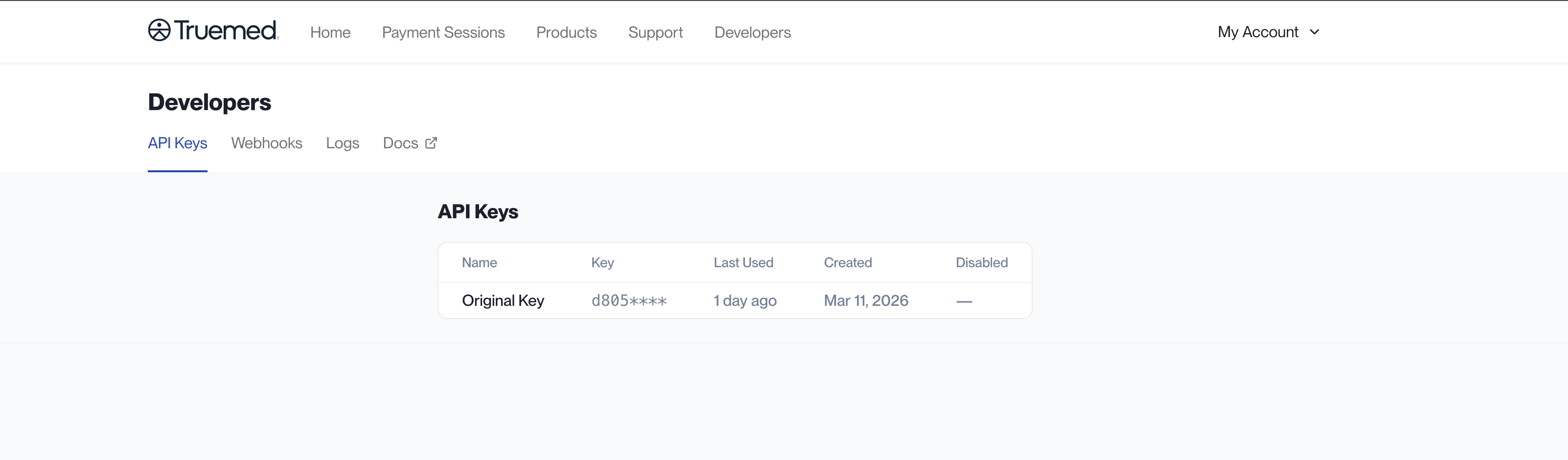
Treat your API keys like passwords. Keep them secret, never expose them in client-side code, and disable any key you believe has been compromised.
Webhooks
The Webhooks tab is where you configure endpoints to receive event notifications from Truemed, so your systems can react to events like a completed payment or a refund.
Logs
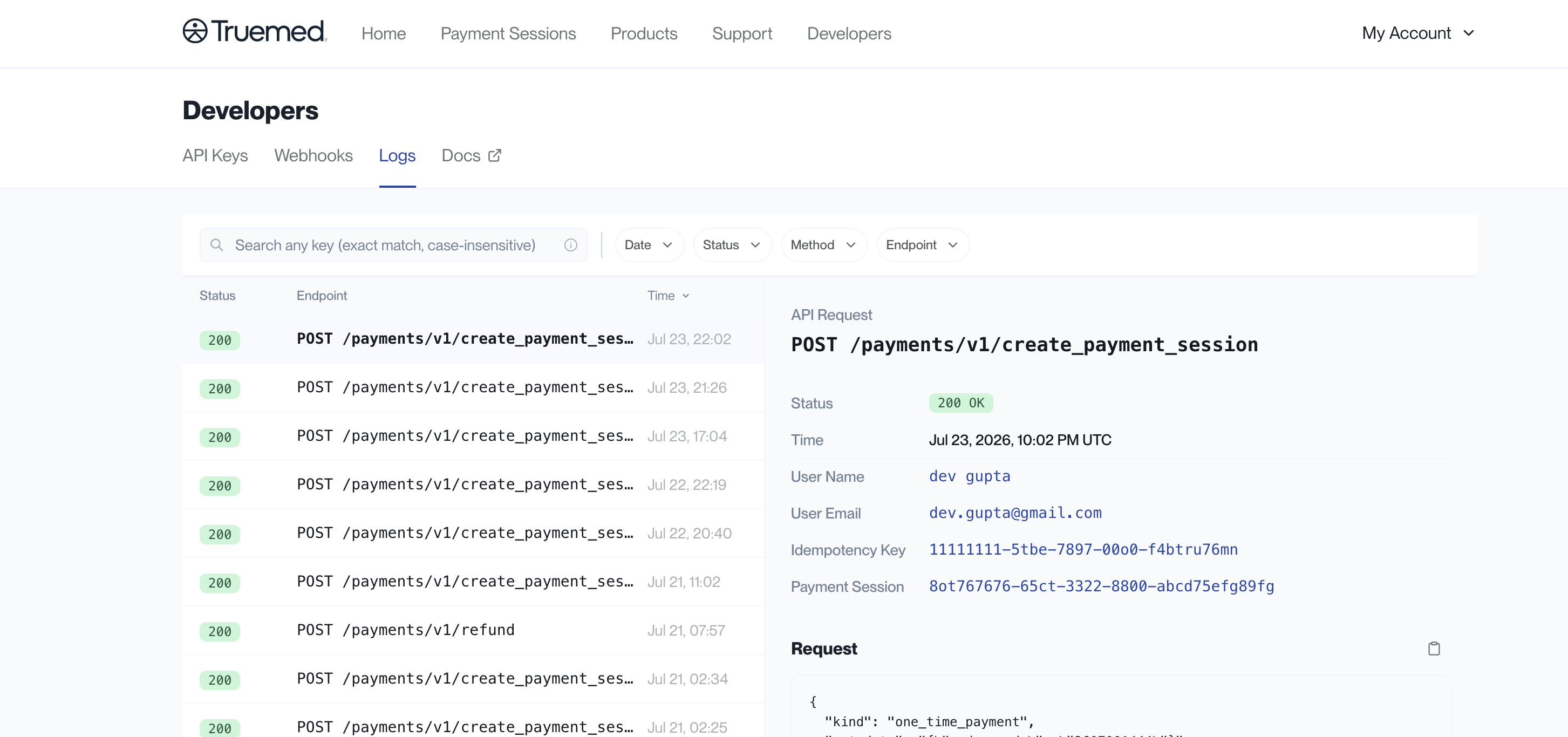
The Logs tab shows every API request your integration has made, with the Status, Endpoint, and Time. Filter by Date, Status, Method, or Endpoint, or search for a specific key.
Selecting a log entry opens the full API Request detail, including the status, time, user name and email, idempotency key, associated payment session, and the request body.
Docs
The Docs tab opens the Truemed developer documentation in a new tab.
Settings
Click My Account in the top right corner and select Settings to manage account details. Settings has two tabs:
- Members: everyone who has access to your Truemed Dashboard, along with their name, email, and role.
- Public ID: view and copy your public qualification ID when you need to share it.
Updating account details
- Card on file. In the Truemed Dashboard, select Settings in the top right, click Payment Method, and update it. Only account Owners can update payment methods.
- Linked bank account. Your payout bank account is managed in your Truemed-linked Stripe account. Click the profile icon, select Payout Details, click the edit icon next to your current bank account, then enter and save your new details. Only users with admin access to your Stripe account can update payout information.
- Business details. Business information like your industry or EIN is managed in your Truemed-linked Stripe account, under Platform Settings in the Business Details section.
Need Help?
For any dashboard or account questions, contact merchants@truemed.com.