
Setup Guide (BigCommerce)
Setup Guide (BigCommerce)
Truemed works with BigCommerce stores to let your customers pay for eligible products with HSA and FSA funds. This article is a high-level overview of how the integration works and what’s involved in getting set up.
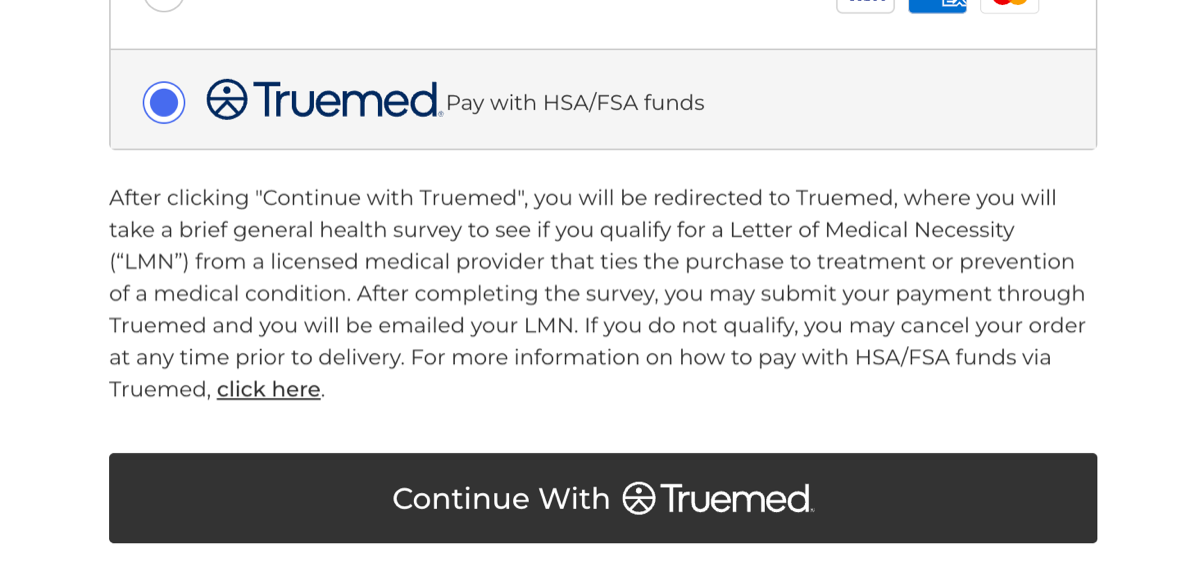
What Customers See at Checkout
When a customer reaches your checkout, Truemed appears as a payment option alongside your other payment methods. Selecting it walks the customer through a short clinical intake form reviewed by an independent licensed practitioner. If the practitioner determines medical necessity, a Letter of Medical Necessity (LMN) is issued and the customer can complete their purchase using their HSA or FSA card.
How Setup Works
The Truemed team handles the heavy lifting of installation. Once your account is approved:
- You invite the Truemed team into your BigCommerce admin
- The Truemed team installs and configures the integration
- You complete a few small configuration steps on your end, like setting up the payment display and updating one email template
- We run a test order together to confirm everything works before you go live
Most merchants are fully launched within a few business days of approval.
What You’ll Need
- An active BigCommerce store
- Admin access to invite the Truemed team
- A US-based business with a Stripe account (set up during Truemed onboarding)
- An optimized one page checkout (Settings → Checkout)
- No active “cash on delivery” payment method (Settings → Payments → Offline payment methods)
Next Steps
When you’re ready to begin installation, your Truemed Solutions Engineer will walk you through the step-by-step BigCommerce installation. To learn more or get approval to start, contact merchants@truemed.com.
Need Help?
For BigCommerce setup questions, contact merchants@truemed.com.