
For AI agents: a documentation index is available at the root level at /llms.txt and /llms-full.txt. Append /llms.txt to any URL for a page-level index, or .md for the markdown version of any page.
Developer Docs
Merchant HubMarketingDeveloper GuidesAPI Reference
    • Merchant Hub
  • Partnering with Truemed
    • How Truemed Works
    • What Is Required to Get Started
    • Eligibility & What Businesses Qualify
    • Compliance
  • Getting Started
    • Welcome to Truemed
  • Set Up Truemed
  • Implementation
  • Truemed Dashboard
    • SKUs
    • Qualifications
    • Account Settings
  • Troubleshooting
  • Staff Training & FAQs
    • How Truemed Works (Team Overview)
    • The Customer Checkout Experience
    • Common Customer Questions
    • Refunds, Returns & Disputes
    • When to Escalate to Truemed
  • Resources
    • Product Page Widget
Developer Docs
LogoLogo
On this page
  • Overview
  • Installation
  • Dark Background Implementation
  • Display on Certain Products Only (Shopify)
  • Additional Customizations
  • FAQs
  • Need Help?
Resources

Product Page Widget

Was this page helpful?
Previous
Built with

Overview

This widget educates customers about HSA/FSA eligibility and indicates that they might qualify for HSA/FSA spending or reimbursement with their purchase.

It should be installed on your product pages, typically near the price or “Add to Cart” button:
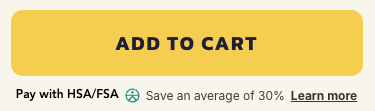
Widget example showing how it appears on a product page

Your widget may look different — we are always working on improvements with the goal of increasing conversion.


Installation

  1. Reach out to merchants@truemed.com if you do not know your Public Qualification ID.

  2. In Shopify, open the template where you’d like to add the widget. In the left-hand editor, select the section where you want the widget to appear, then click “Add block” to insert it.
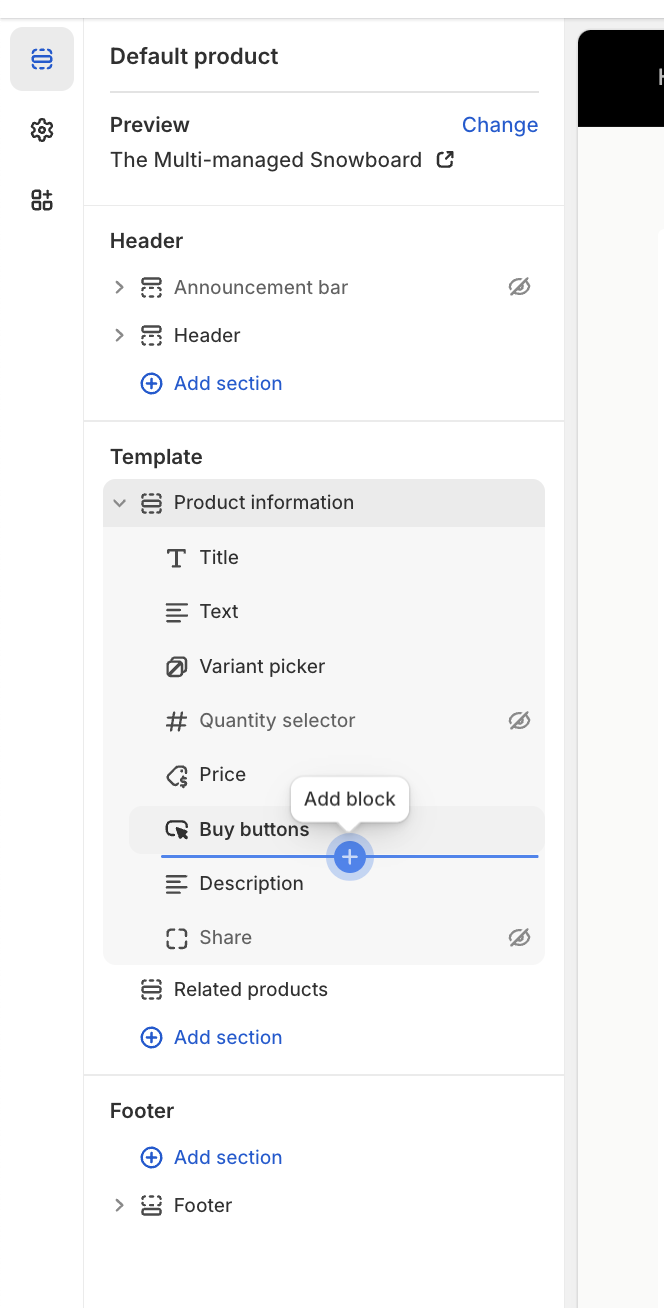
Shopify theme editor — adding a Custom Liquid block

  1. Click “Add block”, then insert these 2 lines of HTML on your site, typically near the “Buy” or “Add to Cart” buttons. Make sure to replace YOUR_PUBLIC_QUALIFICATION_ID with the ID from Step 1:
1<div id="truemed-instructions" style="font-size: 14px;" icon-height="12" data-public-id="YOUR_PUBLIC_QUALIFICATION_ID"></div>
2<script src="https://static.truemed.com/widgets/product-page-widget.min.js" defer></script>
  1. Adjust styles on the div to fit your page. For example:
1style="font-size: 16px; margin-top: 7px; margin-bottom: 10px; font-family: Poppins, sans-serif;"

Dark Background Implementation

For pages with black or dark backgrounds, add the dark-mode attribute to enable a white Truemed logo. Update the text color within the style property:

1<div dark-mode id="truemed-instructions" style="font-size: 14px; color: #ffffff;" icon-height="12" data-public-id="YOUR_PUBLIC_QUALIFICATION_ID"></div>
2<script src="https://static.truemed.com/widgets/product-page-widget.min.js" defer></script>

Display on Certain Products Only (Shopify)

To enable this feature, start by tagging your products in your Shopify dashboard. Choose truemed-eligible if your store sells fewer eligible products than ineligible. Otherwise, choose truemed-ineligible — this is a great option if you have many eligible products but also sell gift cards or branded merch.

To display only on products tagged truemed-eligible:

1<div shopify-tags="display-if-eligible" id="truemed-instructions" style="font-size: 14px;" icon-height="12" data-public-id="YOUR_PUBLIC_QUALIFICATION_ID"></div>
2<script src="https://static.truemed.com/widgets/product-page-widget.min.js" defer></script>

To display on all products except those tagged truemed-ineligible:

1<div shopify-tags="display-unless-ineligible" id="truemed-instructions" style="font-size: 14px;" icon-height="12" data-public-id="YOUR_PUBLIC_QUALIFICATION_ID"></div>
2<script src="https://static.truemed.com/widgets/product-page-widget.min.js" defer></script>

Additional Customizations

1. Change the “Learn how” link color:

1<style>
2.truemed-instructions-open {
3 color: #7a7a7a !important;
4}
5</style>

2. Prevent the Truemed logo from oversizing:

1<style>
2.truemed-logo-img {
3 height: 13px !important;
4}
5</style>

3. Keep the Truemed logo inline with text:

1<style>
2.truemed-logo-img {
3 margin: 2px 0 0 3px !important;
4}
5</style>

4. Add space above or below the widget:

Add margin-top: #px; or margin-bottom: #px; to the style attribute on the div.


FAQs

Does this work for Shopify templates?

Yes. From the Shopify admin panel, navigate to Online Store > Themes > Actions > Edit Code and look for your product template (usually called something like main-product.liquid). Alternatively, send this page along with your Public Qualification ID to your Shopify developers.

Does this widget work for both Payment and Reimbursement integrations?

Yes. Based on your Public Qualification ID, we’ll load the product page (PDP) widget custom-tailored to your merchant profile.


Need Help?

Contact merchants@truemed.com for any technical questions about the product page widget.