
Setup Guide
This guide walks you through setting up Truemed’s post-purchase reimbursement flow. This integration is for merchants who sell subscription products, want to offer HSA/FSA reimbursement alongside direct HSA/FSA card payments, or don’t have a storefront on Shopify, BigCommerce or WooCommerce.
How the Reimbursement Flow Works
Instead of paying directly with an HSA/FSA card at checkout, your customers:
- Purchase normally using any payment method on your site
- Complete a health survey via a Truemed qualification link (shown post-purchase)
- Receive an LMN: If eligible, a licensed provider issues a Letter of Medical Necessity within 24-48 hours.
- Submit for reimbursement: The customer submits the LMN and receipt to their HSA/FSA administrator for reimbursement.
Each LMN covers the customer’s eligible purchases for a full year, so they only need to qualify once annually.
Watch the reimbursement flow walkthrough video for a step-by-step overview.
Prerequisites
Before you begin setup:
- ☐ You’ve created your Truemed account at app.truemed.com
- ☐ You’ve uploaded your product catalog (CSV with Name, SKU, and Description columns)
- ☐ Your products have been reviewed and categorized by Truemed’s compliance team
Step 1: Create Your Truemed Account
If you haven’t already, create your Truemed account using the link provided by your Truemed contact. This gives you access to the Truemed Dashboard, where you can:
- View Qualifications to see customer qualification activity and LMN status
- Manage Settings to add team members and update your payment method
- Upload Products to submit new products for eligibility review
Step 2: Provide Payment for LMN Fees
Truemed charges a flat fee for each LMN issued through your qualification link. Fees are collected in batches every Thursday.
- Go to app.truemed.com/merchants/qualifications
- Add a payment method (credit card)
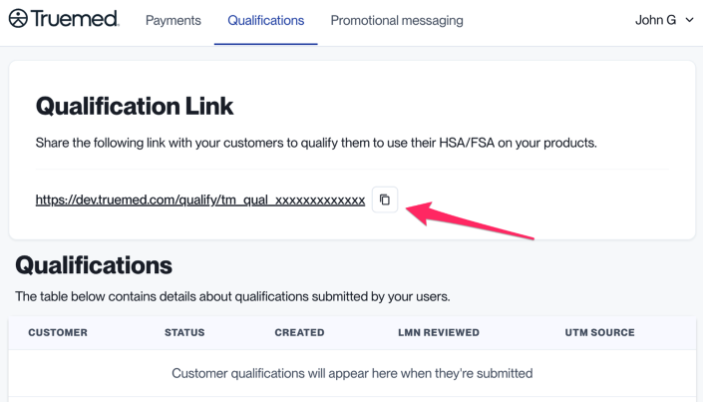
- Once saved, your Qualification Link will appear on this page
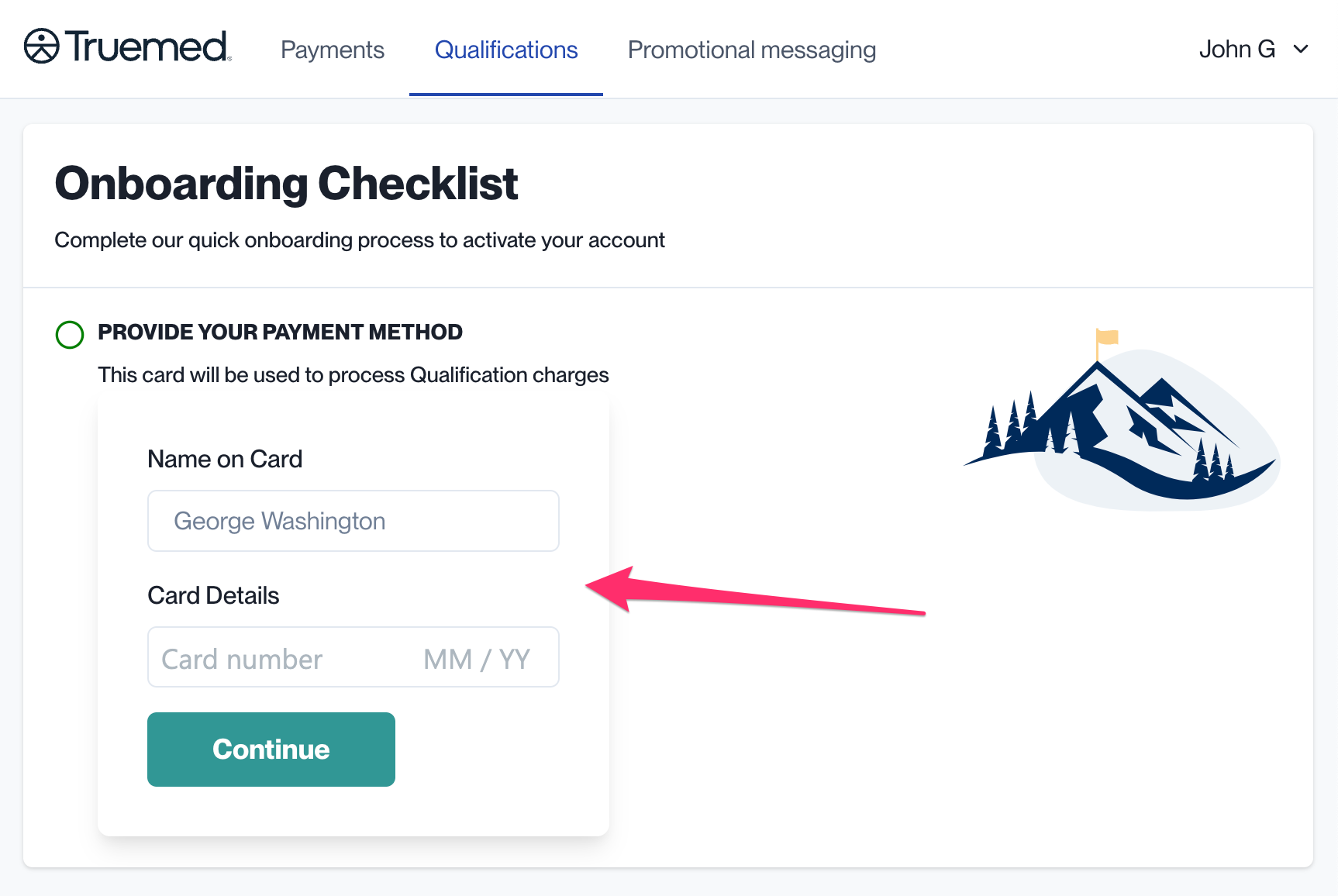
You are charged each time an LMN is issued. Do not place the qualification link on pre-purchase pages (landing pages, marketing emails, etc.). It should only appear after a customer has completed a purchase.
Step 3: Add the Qualification Link to Your Thank You Page
This is the most important touchpoint. Showing the qualification link immediately after purchase gives customers the smoothest path to reimbursement.
Shopify Stores: Checkout Extensibility (Recommended)
If your Shopify store uses Checkout Extensibility:
- Visit apps.shopify.com/truemed-extensions and click Install
- Follow the configuration prompts
- Enter your Truemed Public ID (the last segment of your Qualification Link)
- Save your changes
To show the qualification link only for subscription orders, toggle this setting within the checkout extension editor.
Shopify Stores: Additional Scripts (Legacy)
If you haven’t migrated to Checkout Extensibility:
- Find your Qualification Link at app.truemed.com
- In Shopify, go to Settings > Checkout > Additional Scripts
- Paste in the “Order status page” section:
Non-Shopify Stores
Add a CTA on your post-purchase/order confirmation page:
Step 4: Add the Qualification Link to Your Order Confirmation Email
This acts as a backup in case a customer misses the Thank You page. Add the link to your transactional order confirmation email template.
Example snippet:
Step 5: Install the Product Page Widget
The PDP widget informs customers about HSA/FSA eligibility directly on the product page. This is the highest-impact promotion you can implement.
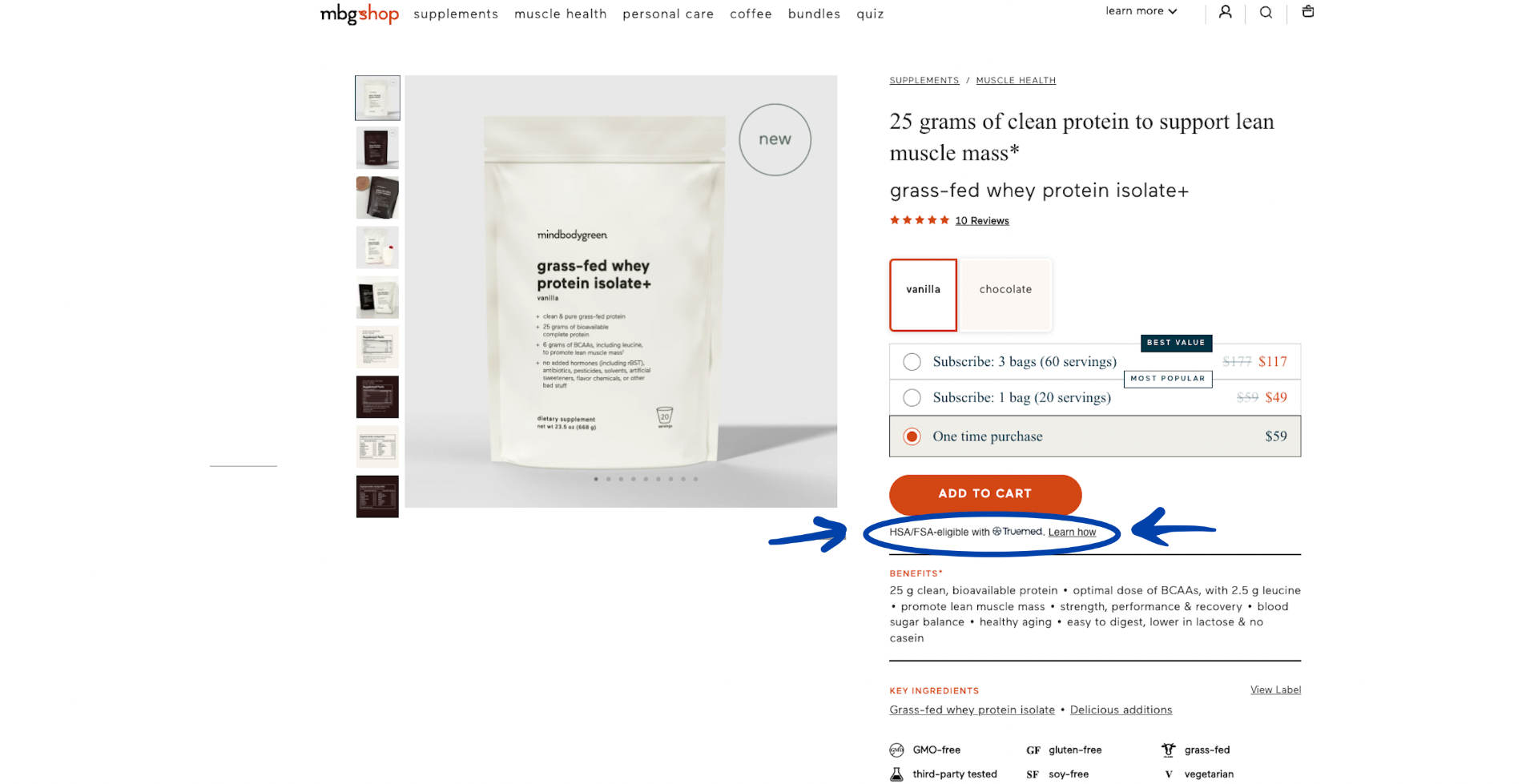
- Get your Public Qualification ID from app.truemed.com/merchants/qualifications
- Add this code near the “Add to Cart” or “Buy” button on your product pages:
The widget auto-detects your merchant profile and displays the appropriate messaging for the reimbursement flow.
Step 6: Add Checkout Messaging for Subscriptions (Shopify, Optional)
If you sell subscriptions through Shopify, add a checkout banner so customers know about the reimbursement opportunity before completing their order.
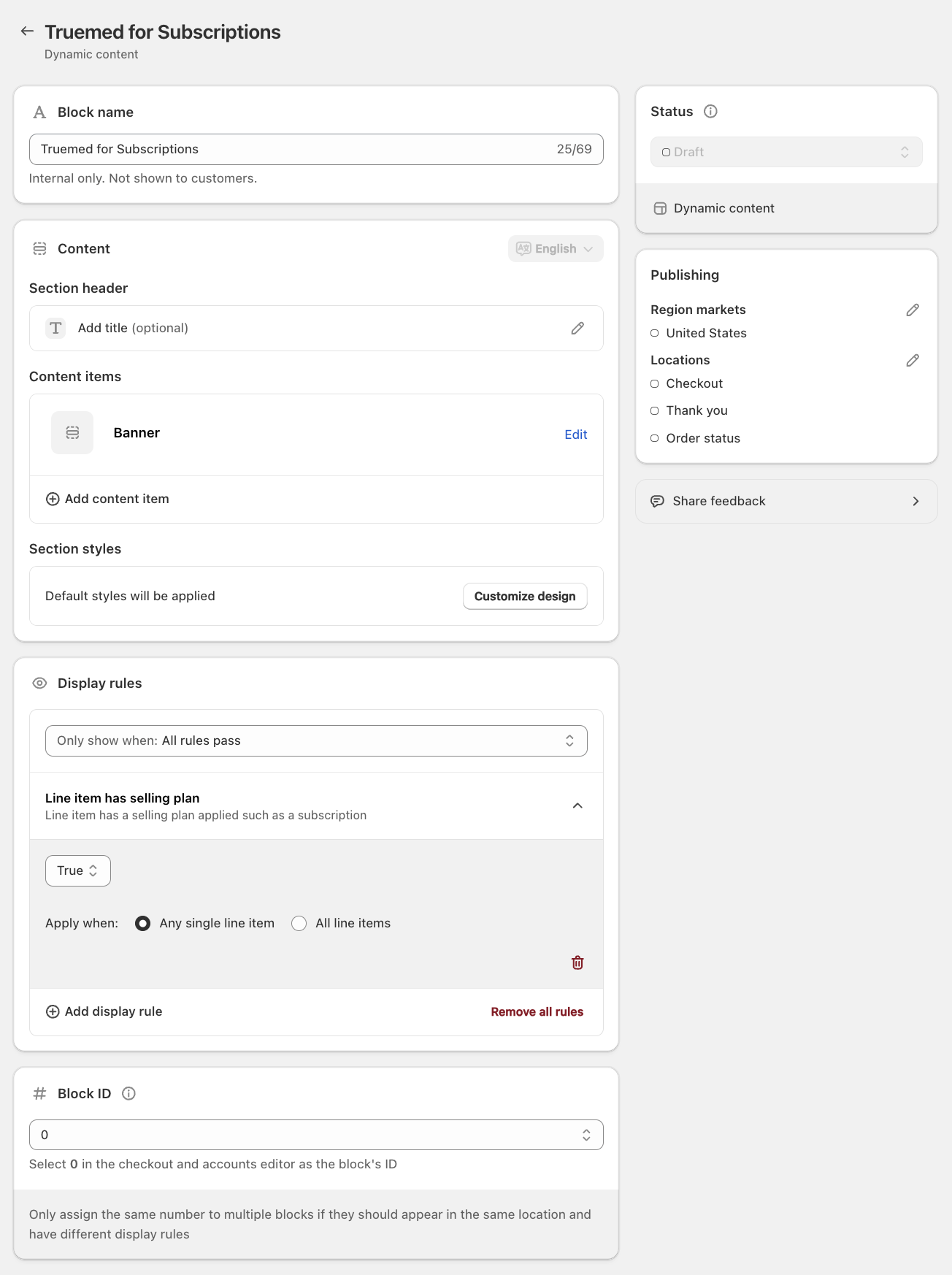
- Install Checkout Blocks
- Create a Dynamic Content Block with a Banner template
- Set display rule: show when any line item has a selling plan
- Use this approved copy:
Title: Save an average of 30% when you use your HSA/FSA funds through Truemed.
Content: Once you’ve purchased, fill out the Truemed health intake form on your order confirmation page to check if you qualify for HSA/FSA reimbursement. HSA/FSA tax savings vary. Learn more at truemed.com/disclosures.
- Limit publishing region to United States
- Save and add the block to your checkout
Reimbursement Attribution (Optional but Recommended)
Track which customers are getting reimbursed and how they discover Truemed by adding query parameters to your qualification links.
Source Parameter
Indicates where the customer clicked the link. Use a different value for each placement:
Common values: email_receipt, order_confirm, email_payment_reminder, reactivate_campaign
User ID Parameter
For more granular user-level attribution:
SKU Parameter
To tailor the health survey to specific purchased items (contact merchants@truemed.com to enable):
All parameter values should be URL-encoded. Source and user_id values are reflected in the Truemed Dashboard and CSV reports.
Verify Your Setup
- ☐ Visit a product page and confirm the HSA/FSA widget appears
- ☐ Complete a test purchase and verify the qualification link appears on the Thank You page
- ☐ Check your order confirmation email for the qualification link
- ☐ Log in to app.truemed.com and confirm your Qualifications tab shows activity
Need Help?
- Account & setup support: merchants@truemed.com
- Customer support (for your customers): support@truemed.com
- Truemed Dashboard: app.truemed.com